Creating your Resume
When employers are bombarded with a massive pool of applicants, the only alternative left for an employee to stand out from the crowd is their resume. It not only talks volumes about a candidate's skills but the art of building/tailoring a resume can turn out to be just the reason you got hired.
ReviewNPrep brings to you Resume Builder with an easily accessible e-draft that can be shared with the employer on demand.
Update/customize your resumes as per the job profile.
Share/Download the resume unlimited times.
Seek Guidance/Pick from a number of readymade templates at your disposal.
Now, you can also add your resume to your Personal Signature. Read below to learn more.
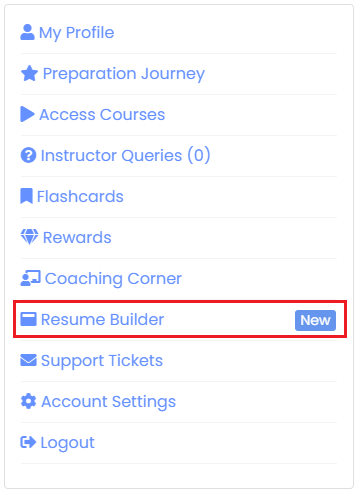
- Once logged into your Student RNP Account, navigate to your student dashboard and click on Resume Builder, or visit this link.
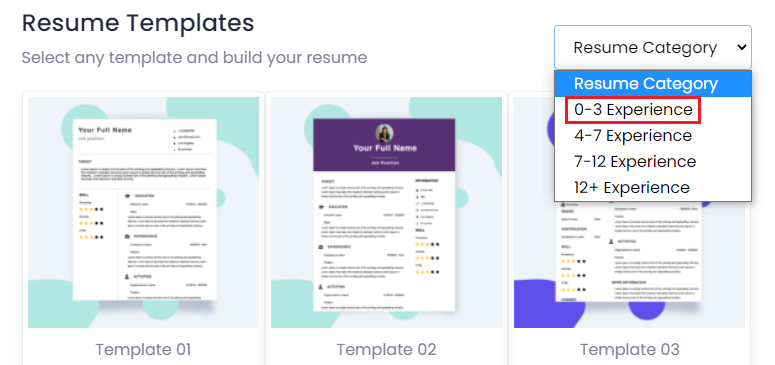
- A set of templates load for you to pick a suitable one as per your needs. The templates are divided as per the Resume Category.
(i) 0-3 Experience: 0 to 3 years of professional experience
(ii) 4-7 Experience: 4 to 7 years of professional experience
(iii) 7-12 Experience: 7 to 12 years of professional experience
(iv) 12+ Experience: More than 12 years of professional experience
- Select your preferred category to customize the templates as per your level of experience.
For reference, we will navigate through the 0-3 Experience Resume Category in this documentation.
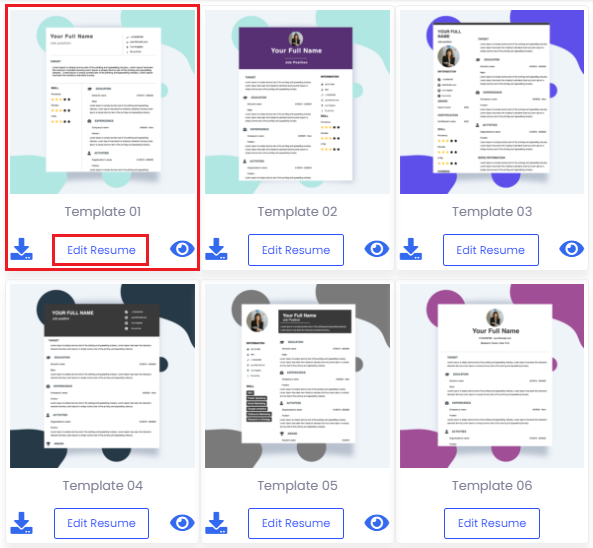
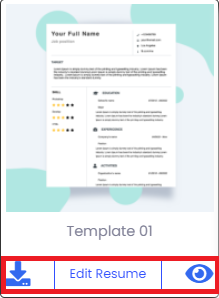
- Upon selecting the 0-3 Experience Category, a set of 8 readymade templates become available along with a Cover Letter for you to modify as per your requirements. You can select either of these templates dependent on their design, sectional division, content provided, etc. by clicking on Edit Resume.
For reference, we will discussTemplate 1 *in this documentation. *
- After clicking on Edit Resume, the Resume Editor opens up for you to tailor the resume as per your information. The taskbar allows you to view components, preview, enter full screen, view code, return to the previous page, save the page, and open settings respectively.
You can also select, edit, and type in the pre-existing text to furnish your personal details.
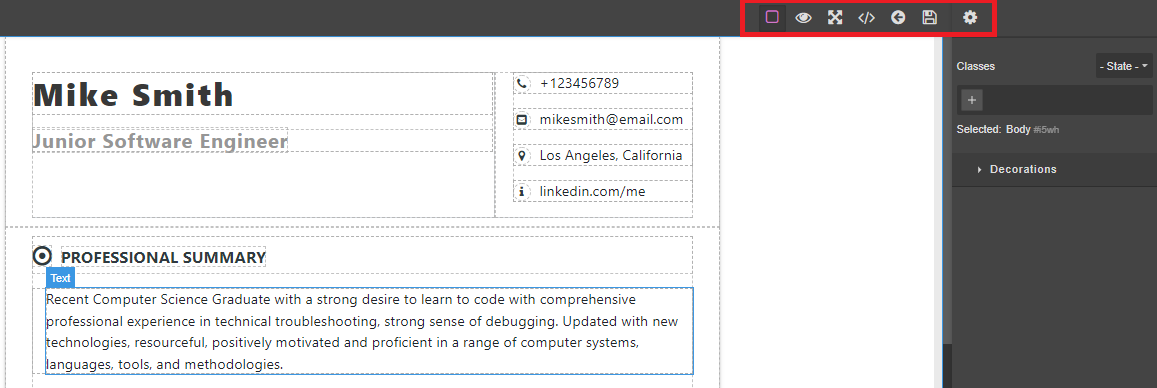
- Once you have edited all the details in the template, kindly save it by clicking on the Save Page button on the taskbar.

- After saving, return to the previous page by clicking on the Back button. Navigate to your chosen template and click on the View button to check the final draft. Once satisfied, kindly click on the Download button to download and save your resume as a PDF.
-
Voila! Your draft has been saved on your system and on ReviewNPrep. You can make changes to the existing draft as per the job profiles upon logging into your student account.
-
You can share a copy of the resume by clicking on the eye icon. A unique link is created on our domain resumeactive.org. Example - https://resumeactive.org/1/a118806694c9d9b1091fe94039ae462a.
A hassle-free way to navigate all your data including socials and resume is to create your personal signature which can be shared with end number of recipients on demand. Click here for more details on how to add your resume to your Personal Signature (Powered by ReviewNPrep).