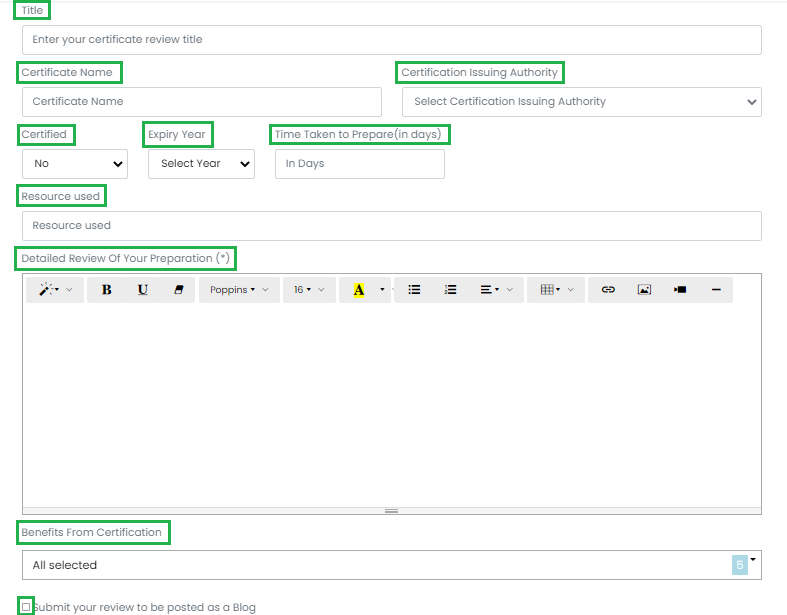
(g) Resource Used [Mention all resources used in preparation]
(h) Detailed Review of your Preparation [To be explained in depth]
(i) Benefits from Certification [Pick as many as believed from a list of five]
If you want your review to be posted as a blog by the team, kindly check the box alongside Submit your review to be posted as a blog, before publishing the final draft.
4. In order for the review to meet the ReviewNPrep Guidelines, kindly visit this link.
5. After adding all the details, there is an option to enter a $5 Amazon Gift Card Giveaway which happens bi-weekly. Kindly provide your email to participate in the contest.
6. The review can be saved as a draft or saved and published.
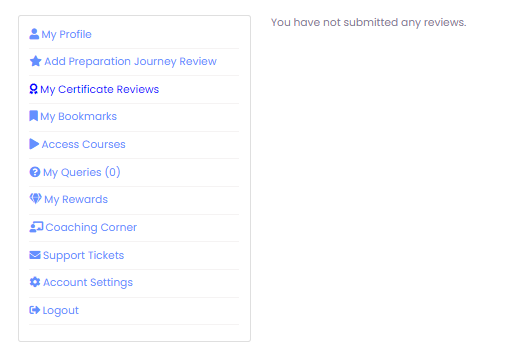
7. The reviews that are published can be viewed under My Certificate Reviews on the Student Dashboard. If you do not have any published reviews, the respective section indicates the same.