How to Create a Practice Exam
-
To create a course, navigate to Practice Exams on your Instructor Dashboard and click on Create New.
-
Planning Your Course
It is extremely important to plan your course for structuring it according to your desired format.
-
Once you decide on a topic, it is time to explore it in a detailed manner so that you can deliver it in the best interest of the learner.
-
A solid foundation with clarity on what you want your learners to grasp from your course will go a long way in the effective execution of your teaching.
- Start by adding the following:
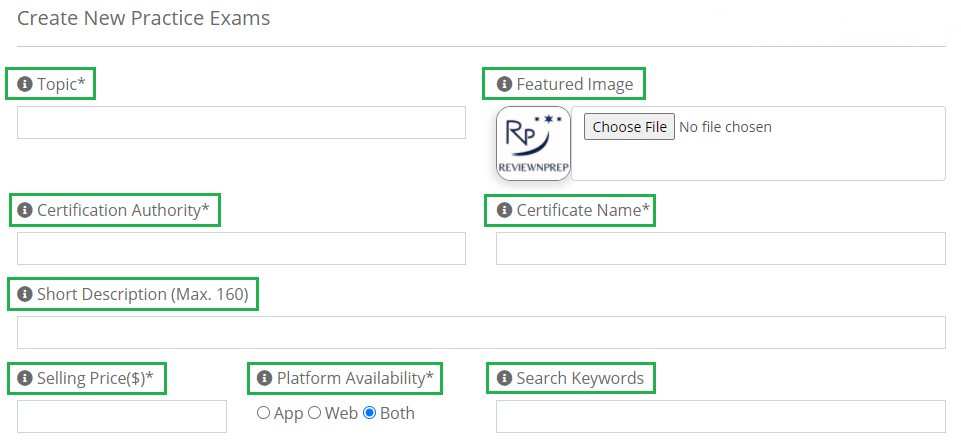
(a) Topic [A topic can have multiple exams]
(b) Featured Image [It should describe the course accurately with size under 500 KB]
(c) Certification Authority [Pick one from the drop-down menu/ Add on your own]
(d) Certification Name [Pick one from the drop-down menu/ Add on your own]
(e) Short Description [Maximum 160 words]
(f) Selling Price ($) [Set your own selling price (Our recommendation: minimum $9.99 for a practice exam)]
(g) Platform Availability [Choose from App/ Web/ Both]
(h) Search Keywords [Multiple keywords can be added separated by commas]
- Structuring Your Course
This is where you optimally organize the course content. In order to set your course apart, strategize your course in a way that the learners can utilize it to the best of their capabilities.
(a) Course Description [Detailed version of the course]
(b) Level [Choose from Beginner/ Intermediate/ Expert/ All Levels]
(c) Learning Objective [Certification details offered by the Certification Authority]
(d) Welcome Email to Student [It is sent to the buyer upon purchasing your course]
- Take your time to fill in all the details. Once done, click on Create Exam Topic.

- You have successfully created a course.
