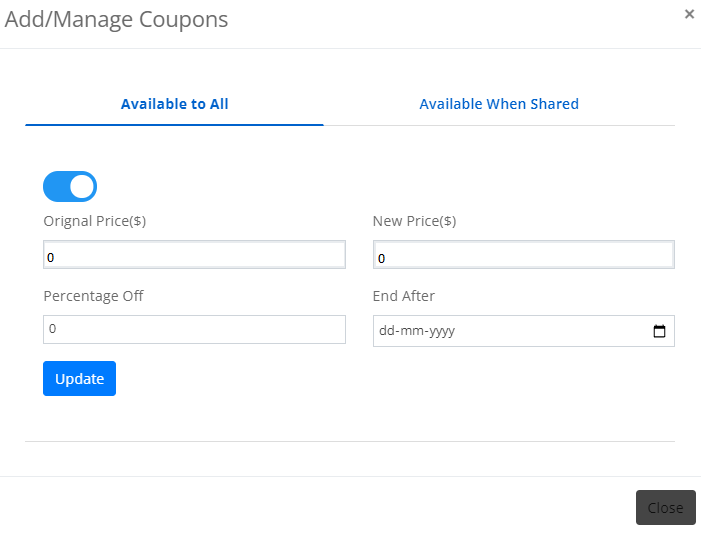
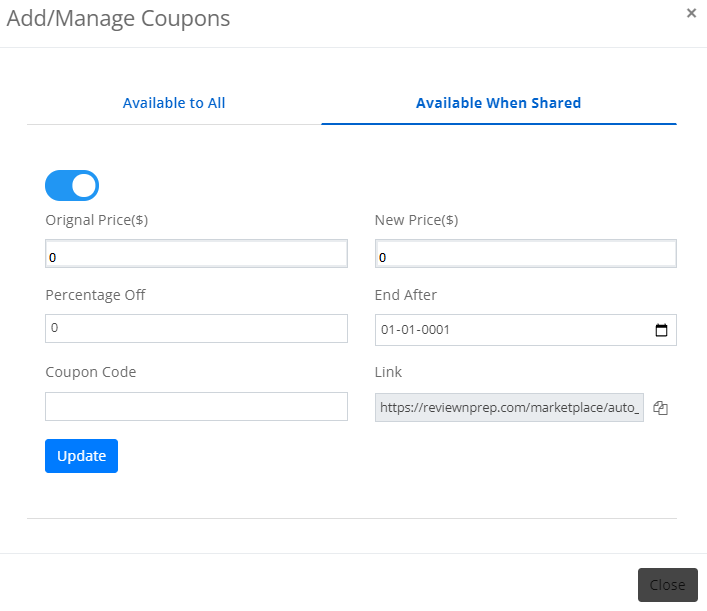
Start by filling in a number in Percentage Off. For example, 20 [i.e. 20% off of the Original Price($)]. While feeding it, you will notice that an amount appears in New Price ($) [i.e. original price at the stated discount percentage].
5. Once the new price is set, select an expiry date for the coupon using End After.
6. If you pick for the coupon to be made available when shared, provide a Coupon Code and copy the auto-generated Link for easy access. Once done, click on Update.
7. You have successfully created a coupon for the respective exam/flashcards.